User Instructions
Location: Main Menu > Alarms > User Instructions
Overview
User Instructions are written response procedures that are associated with Alarm Definitions.
When an alarm occurs and is opened from the Active Alarms page, the associated User Instructions are displayed to guide the operator on what actions to take.
User Instructions:
•Provide standardized response steps
•Help ensure consistent alarm handling
•Are visible only within the Alarm Details page
•Are not included in email or SMS alarm notifications
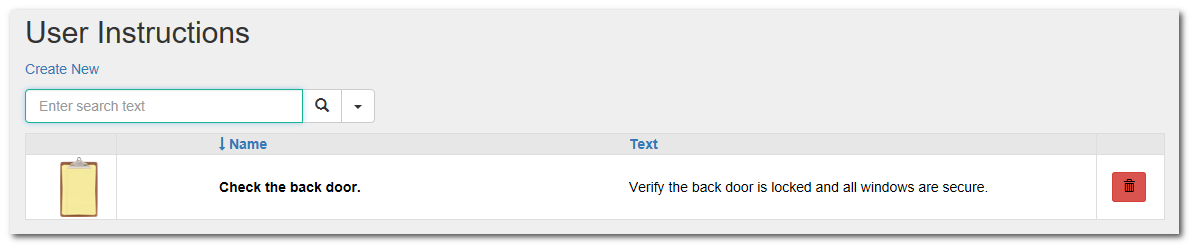
Viewing or Editing a User Instruction
To view or edit an existing User Instruction:
1.Navigate to Main Menu > Alarms > User Instructions.
2.Click the name of the User Instruction.
3.Edit the Name and/or Instruction Body as needed.
4.Click Save.
The History tab will display an audit trail of changes made to the User Instruction.
Creating a New User Instruction
To create a new User Instruction:
1.Navigate to Main Menu > Alarms > User Instructions.
2.Click Create New (upper left).
3.Enter the following information:
a.Name - A clear, descriptive name (for example: Door Forced Open Response).
b.Body - The full set of step-by-step instructions that operators should follow when this alarm occurs.
4.Click Save.
Deleting a User Instruction
To delete a User Instruction:
1.Navigate to Main Menu > Alarms > User Instructions.
2.Click the red garbage can icon on the far right of the row.
3.Confirm deletion.
Use caution when deleting User Instructions that are currently associated with Alarm Definitions.
Associating a User Instruction to an Alarm
User Instructions must be linked through an Alarm Definition.
To associate a User Instruction:
1.Navigate to Main Menu > Alarms > Alarm Definitions.
2.Select the desired Alarm Definition.
3.Go to the User Instructions tab.
4.Select the appropriate User Instruction.
5.Click Save.
Once associated, the instructions will appear whenever that alarm is opened from the Active Alarms page.