Cardholders
Location: Main Menu → Access Control → Cardholders
Overview
The Cardholders section in Drawbridge is used to create and manage the individuals who are authorized to use credentials within the access control system. A cardholder represents a person who may be assigned one or more credentials (cards, badges, or other supported credentials) used to access secured doors or areas.
Cardholder records store identifying information such as name, ID number, contact information, and optional notes. Credentials are assigned to the cardholder record and can then be associated with Access Levels, which determine where and when the cardholder is allowed to enter.
A cardholder can have multiple credentials assigned, which is useful for situations such as replacement badges, temporary credentials, or multiple access devices.
This section also includes the ability to print physical access cards, allowing administrators to quickly issue new credentials directly from the system.
Cardholder List Page
The Cardholders page displays all cardholders within the current partition.
From this page you can:
•View all cardholder records
•Search for specific cardholders
•Sort the list by column headings
•Open existing cardholder records for editing
•Add new cardholders to the system
The list is sortable by clicking any column header.
Creating a New Cardholder
To create a new cardholder:
1.Navigate to Access Control → Cardholders.
2.Click Add Cardholder in the upper-left corner.
3.Enter the required information.
4.Complete any optional details as needed.
5.Click Save.
Cardholder Fields
The following fields are available when creating a cardholder:
•Cardholder ID (Optional) - A unique identifier for the person. This may be an employee ID, badge ID, or other internal identifier. Note: This is not the credential number.
•Last Name (Required) - The cardholder’s last name.
•First Name (Required) - The cardholder’s first name.
•MI (Optional) - The cardholder’s middle initial.
•Cardholder Picture (Optional) - A profile image can be assigned by clicking Select below the profile graphic.
Cardholder Information Tabs
Additional information can be stored in several tabs within the cardholder record.
General Tab
The General tab contains core information about the cardholder and their assigned credentials.
Typical information stored here includes:
•Address information
•Emergency contact information
•Workplace information
•List of assigned cards
•Option to create and assign a new card
This tab also allows administrators to create a card and associate it with the cardholder in a single step.
Additional Tab
The Additional tab allows optional information about the cardholder to be stored.
This may include:
•Department information
•Employee status
•Other organization-specific details
Custom Tab
The Custom tab is used for site-specific or organization-defined fields.
Administrators may use this area to store information unique to their deployment.
Notes Tab
The Notes tab allows administrators to store free-form text about the cardholder.
Examples may include:
•Special instructions
•Security notes
•Administrative comments
•Badge replacement history
History Tab
The History tab displays a detailed audit trail for the cardholder.
This includes changes such as:
•Cardholder record updates
•Credential assignments
•Access level changes
•Administrative modifications
Audit history provides visibility into when changes were made and by which user.
Card Printing (Drawbridge v9.0 or later)
Drawbridge includes built-in support for printing physical access cards. This allows administrators to select one or more cardholders and generate cards using configured printer profiles and templates.
Printing Cards from the Cardholders Page
To print cards for one or more cardholders:
1.Navigate to Access Control > Cardholders
2.Select the Print checkbox next to each cardholder to be printed
3.(Optional) Use Cards to Print to refine or confirm your selection
4.Click Print New Cards
This will open the Print Cards screen.
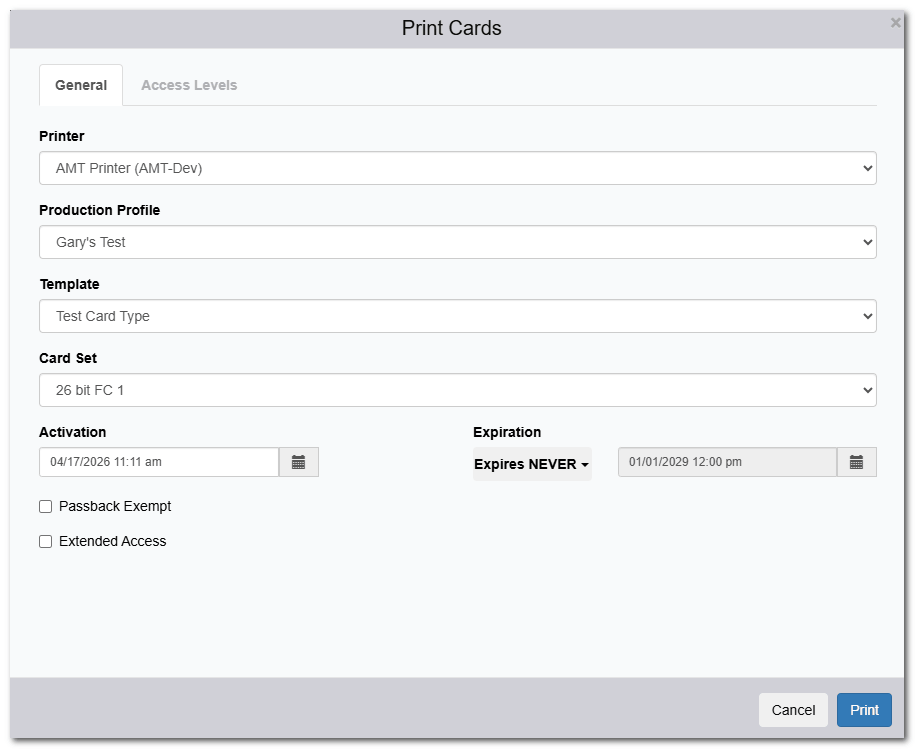
Print Cards Screen
General Tab
Configure how the cards will be printed:
•Printer – Select the card printer to use
•Production Profile – Defines print behavior/settings
•Template – Card layout/design
•Card Set – Must match the physical cards loaded in the printer
•Activation Date – When the card becomes active
•Expiration Date – Optional expiration
•Passback Exempt – Bypass anti-passback rules
•Extended Access – Grants longer unlock times when used
Access Levels Tab
•Assign Access Levels to all selected cards being printed
•Ensures credentials are immediately functional upon issuance