Alarm Definitions
Navigation: Main Menu > Alarms > Alarm Definitions
Overview
The Alarm Definitions page is used to create and manage alarms within the partition.
An Alarm Definition determines:
•Which hardware device generates the alarm
•Which event triggers the alarm
•The priority level of the alarm
•How the alarm appears on the Active Alarms page
•Who receives alarm notifications
•What User Instructions are displayed when the alarm occurs
Click any column header to change the sort order.
Creating a New Alarm Definition
To create a new Alarm Definition:
1.Navigate to Main Menu > Alarms > Alarm Definitions.
2.Click Create New (upper left).
3.Complete the required fields.
4.Click Save.
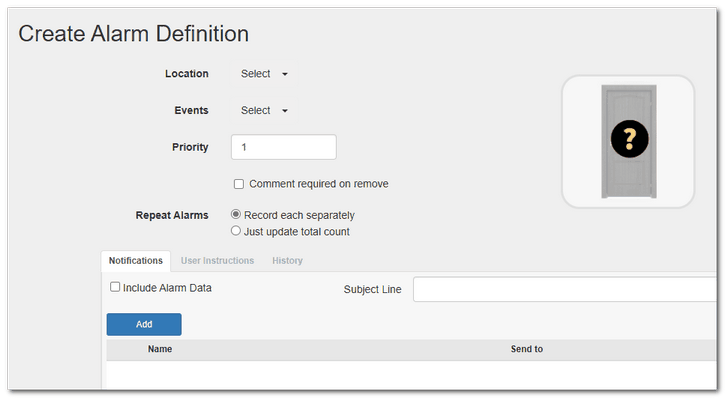
General Settings
•Location - Select the hardware object that will generate the alarm (reader, input, door, controller, etc.).
•Event - Select the specific event that will trigger the alarm (for example: Door Forced Open, Door Held Open, Access Denied, etc.).
•Priority - Enter a numeric value representing the severity of the alarm. Higher priority values typically indicate more critical alarms.
•Repeat Alarms - Determines how repeated alarm occurrences appear on the Active Alarms page:
•Record each separately - A new row is created each time the alarm occurs.
•Just update the total count - The existing alarm row remains, and only the count increases.
Notifications Tab
The Notifications tab is used to configure email and/or SMS alarm notifications.
Options include:
•Include Alarm Data (checkbox) - When selected, the general alarm description is included in the notification message.
•Subject Line - Defines the subject line for the email or SMS notification.
•Add (button) - Click Add to select recipients for this alarm notification.
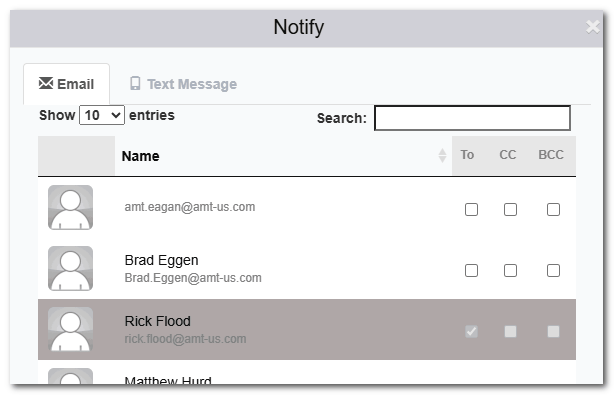
Recipients must have:
•A valid email address (for email notifications)
•A valid mobile number and mobile provider (for SMS notifications)
User Instructions Tab
User Instructions are written procedures displayed when viewing the alarm details.
To associate User Instructions:
1.Go to the User Instructions tab.
2.Select an existing User Instruction.
3.Save the Alarm Definition.
|
User Instructions are displayed in the Alarm Details page only. They are not included in email or SMS notifications. |

History Tab
The History tab provides a full audit trail of:
•Creation
•Edits
•Changes to notification settings
•Changes to associated User Instructions
Editing an Alarm Definition
To edit an existing Alarm Definition:
1.Navigate to Main Menu > Alarms > Alarm Definitions.
2.Click on the Alarm Definition name.
3.Make the necessary changes.
4.Click Save.
Deleting an Alarm Definition
To delete an Alarm Definition:
1.Navigate to Main Menu > Alarms > Alarm Definitions.
2.Click the red garbage can icon at the far right of the alarm row.
3.Confirm deletion.