Active Alarms
Location: Main Menu > Alarms > Active Alarms
Overview
The Active Alarms page displays all currently active alarms within the current partition.
This page allows users to:
•View active alarm conditions
•Acknowledge alarms
•Remove alarms from the active list
•Add comments to alarms
•Open detailed alarm information
|
Alarms are sortable. Click any column header to change the sort order. |

Alarm Status Indicators
Each alarm has a visual status indicator:
•Red – Unacknowledged (new or active alarm)
•Green – Acknowledged (alarm has been reviewed)
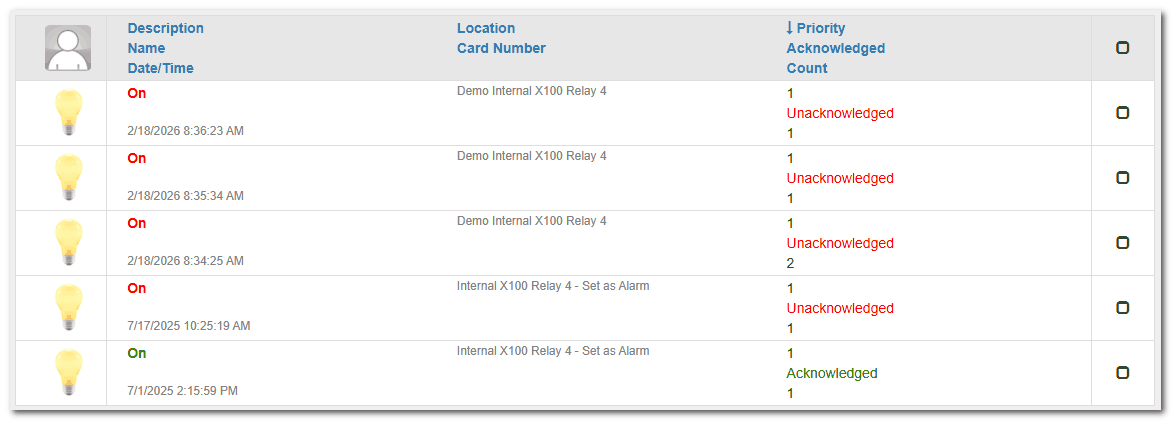
Changing Alarm Status
To update the status of an alarm:
1.Locate the alarm in the list.
2.Select the checkbox in the far-right column.
3.Choose one of the available status options.
Available status options:
•Acknowledge - Marks the alarm as reviewed and changes the alarm color to green.
•Acknowledge and Remove - Marks the alarm as reviewed and removes it from the Active Alarms page.
•Unacknowledged - Changes a previously acknowledged alarm back to red.
•Add Comment Only - Allows you to enter a comment without changing the alarm status.
Managing Multiple Alarms at Once
To update multiple alarms simultaneously:
1.Select the header checkbox at the top of the Active Alarms table.
2.All alarms on the current page will be selected.
3.Choose the desired status action.
This is useful during high-volume alarm situations.
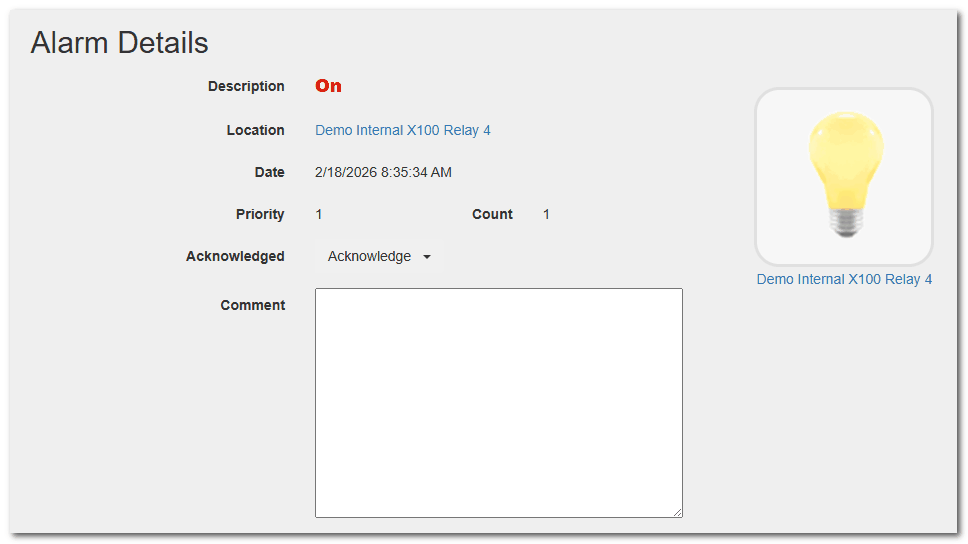
Viewing Alarm Details
To open the Alarm Details page, click the alarm description (not the checkbox).
From the Alarm Details page, you can:
•View full alarm details
•View associated User Instructions (if configured)
•Add comments
•Change the alarm status
•View the audit history