Devices
Navigation: Main Menu > Monitor/Command > Devices
Overview
The Devices page is the central location for viewing and managing all hardware within the selected Partition.
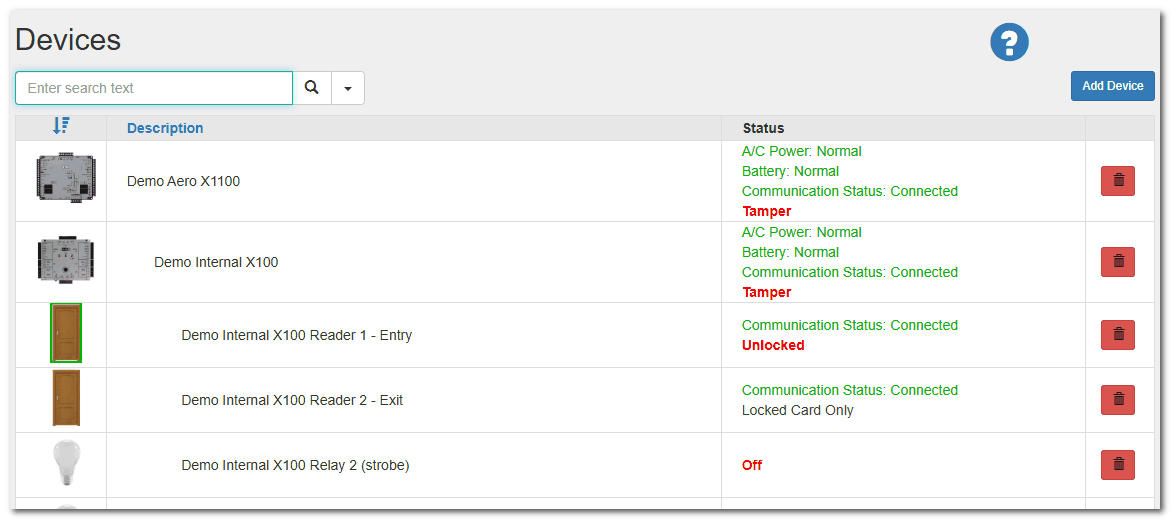
This page provides a structured view of:
•Controllers
•Panels (Subcontrollers)
•Readers
•Inputs
•Outputs
•Locksets
The Devices page is used to:
•View hardware status
•Add new hardware
•Access device configuration pages
•Send manual commands to hardware
•Review device audit history
Detailed configuration instructions for each hardware type are covered in their respective sections of this manual.
Page Layout and Interface
The Devices page is organized to display all hardware assigned to the current Partition.
Default View
•Devices are listed and sorted by Description by default.
•The list includes all controllers and their associated hardware.
Hardware Hierarchy View
To view devices in their wired/installed structure:
1.Click the hamburger icon (☰) in the upper-left corner.
2.The list will reorganize to show:
▪Controllers at the top level
▪Panels beneath controllers
▪Readers, Inputs, and Outputs beneath panels
Adding Hardware
To add new hardware:
1.Click the Add Devices button (upper-right corner).
2.Select the controller type to add.
3.Click Create…
4.Complete the required configuration fields.
5.Click Save.
Once saved, the device will appear in the Devices list.
Only Controllers are added from the Add Devices button. Panels and I/O devices are added from within their parent controller.
Accessing a Device
To open a device:
1.Click the device name from the list.
The device detail page allows you to:
•Edit configuration settings
•View status information
•Send commands (if supported)
•Review audit history
Available options vary by hardware type.
Commanding Devices
Certain devices allow manual commands directly from their detail page.
Examples include:
•Lock / Unlock
•Pulse Output
•Change Reader Mode
•Reset or Synchronize (if supported)
Commands are hardware-dependent and will only appear when applicable.
Device Status and Monitoring
Devices communicate status updates to Drawbridge.
Typical indicators include:
•Online / Offline status
•Firmware version
•Serial number
•Communication health
For real-time activity, refer to:
Main Menu > Monitor/Command > Events
Search and Sorting
The Devices page includes sorting capabilities:
•Click column headers to change sort order.
•Use the Search box (if available) to filter devices.
This is useful in systems with a large number of hardware devices.