HID Aero x1100 Controller
Location: Main Menu → Monitor/Command → Devices → Add Devices → Aero
Overview
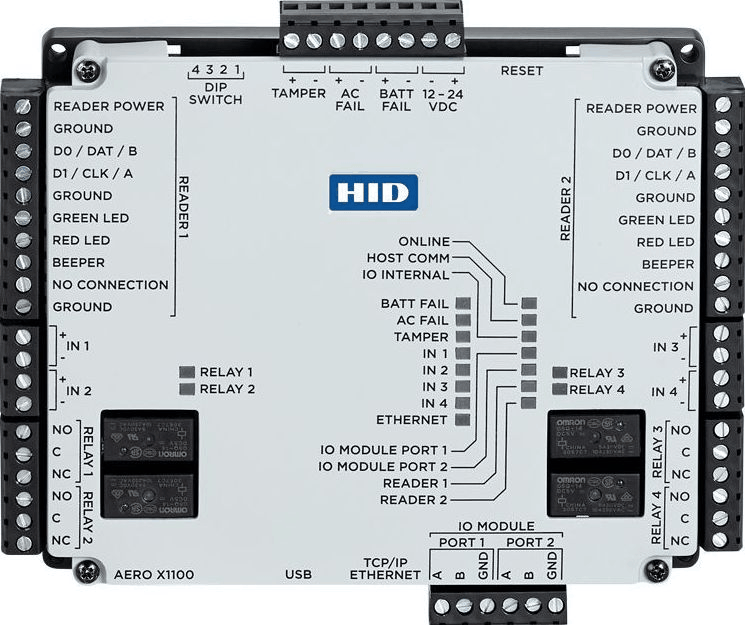
The HID Aero x1100 is a primary access control controller supported within Drawbridge. It acts as the central communication point between the Drawbridge system and connected field hardware, including readers, inputs, outputs, and expansion panels.
Within Drawbridge, the x1100 is treated as a controller, meaning it communicates directly with the server and manages downstream devices such as Aero subcontrollers (x100, x200, x300).
The x1100 supports both onboard I/O and scalable expansion, making it suitable for small to large access control deployments.
Key Capabilities
•Supports up to:
o2 access points (base configuration)
o2 Wiegand or 4 OSDP readers onboard
•Built-in:
o4 relays (door strikes / outputs)
o7 supervised inputs (door contact, REX, tamper, etc.)
•Expandable via subcontrollers:
ox100, x200, x300 modules
•Maximum system capacity:
oUp to 64 readers
oUp to 64 access points
oUp to 615 inputs / 388 outputs
Adding an Aero x1100 in Drawbridge
1.Navigate to Monitor/Command → Devices
2.Click Add Devices
3.Select Aero
4.Click Create
5.Enter required configuration details
6.Click Save
Once saved, the controller will appear in the Devices list and begin communication with Drawbridge.
Adding/Editing an Aero x1100
When creating or editing an x1100, the following fields are available:
General Settings Tab
•Description - A user-defined name for the controller (e.g., Main Entrance Controller)
•MAC Address - Unique hardware identifier for the x1100 (required for communication)
•Time Zone - Defines the local time for scheduling and events
•Enable Debug Logging - Enables detailed logging for troubleshooting
•Send Text Command - Used for advanced/manual command input (typically for support use)
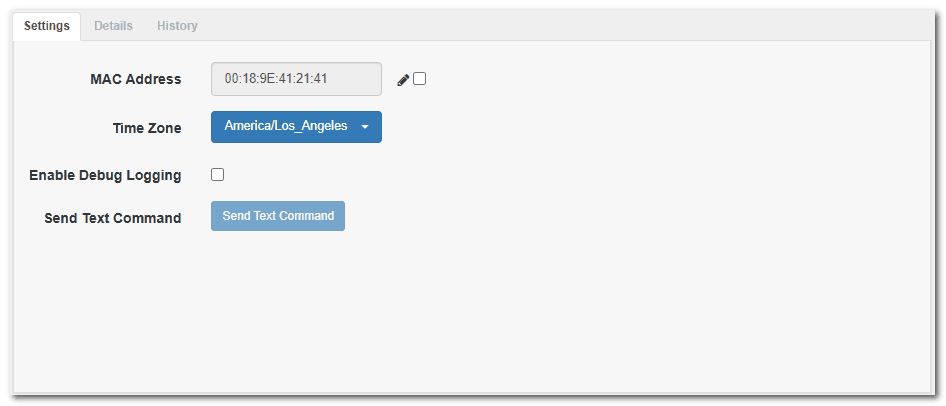
Aero Controller Settings
Details Tab (Read-Only)
Populated after the controller communicates with Drawbridge:
•Serial Number
•Hardware Server (AWS endpoint the controller connects to)
•Aero Controller UID
•Firmware Version
•Port 1 Hardware Type
•Port 2 Hardware Type
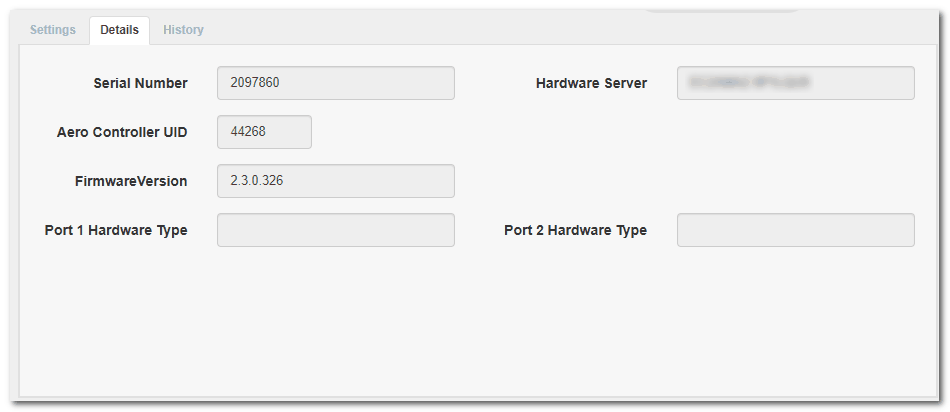
Aero Controller Details
Important Notes:
•Port types (Aero vs EVO) are auto-detected
•Mixing panel types on the same port is not allowed
History Tab
•Displays a full audit trail of:
oConfiguration changes
oCommunication updates
oSystem events related to the controller
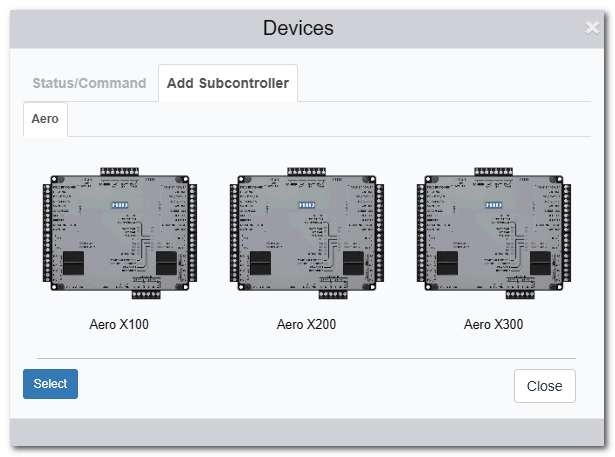
Adding Aero Subcontroller
Adding Subcontrollers (Expansion Panels)
To expand the x1100:
1.Go to Devices
2.Select the x1100 controller
3.Click Add Subcontroller
4.Choose panel type:
ox100 (door control)
ox200 (inputs/outputs)
ox300 (mixed control/monitoring)
5.Click Create and configure
Subcontrollers inherit communication through the x1100.
How the x1100 Fits in Drawbridge Architecture
•Controller (x1100)
oDirectly communicates with Drawbridge server
oManages all downstream devices
•Subcontrollers (x100/x200/x300):
oProvide additional I/O capacity
oConnected via RS-485 to the x1100
•Readers / Inputs / Outputs:
oConnected to controllers or subcontrollers
oRepresent actual field devices (doors, sensors, relays)