Home Screen
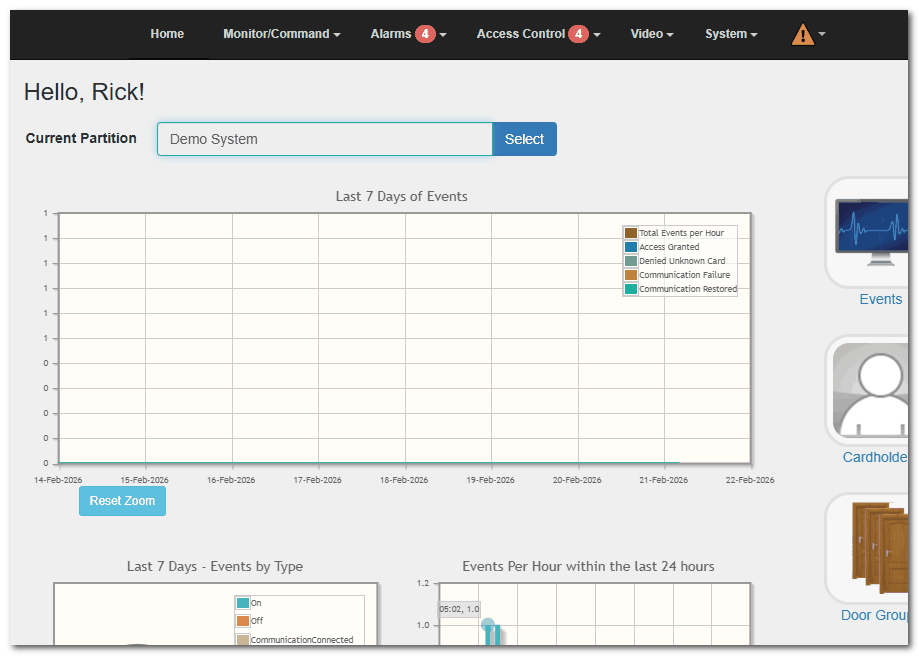
The Home Screen is automatically displayed after successful login and accessible
anytime by clicking the partition logo (top left of the Main Menu)
Overview
The Home Screen serves as the dashboard for your Drawbridge partition. It contains:
•Three graphical event summaries
•Quick navigation links
•Access to the Main Menu
Main Menu Access
The Main Menu is always visible at the top of the screen (black navigation bar).
From the Home Screen, you can access:
•Monitor/Command
•Access Control
•Alarms
•Video
•System
•Reports
Some menu items may display a red badge indicator.
Red Badge Indicator
A red badge on a menu item indicates something requires attention, such as:
•Unacknowledged alarms
•Expired holidays
•Configuration issues (e.g., SMTP not configured)
•License grace period warnings
Click the menu item with the badge to review and resolve the issue.
Threat Level Indicator
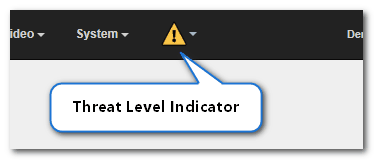
If a Threat Level has been defined, the menu bar will show the Threat Level Indicator on the right side of the menu bar.
When a Threat Level is activated:
•The menu bar background changes color to match the configured Threat Level.
•The menu bar may flash to alert users that the system is operating under a heightened security condition.
•Predefined door, access, input, and output behaviors associated with that Threat Level may automatically activate.
Threat Levels are typically used for scenarios such as:
•Building lockdowns
•Emergency response situations
•Temporary access restrictions
Users can view or configure Threat Levels by navigating to: Main Menu > Alarms > Threat Levels